Appearance
Products Management
At first your store will not have any products. This is where you can start adding products to populate your store.
Adding New Products
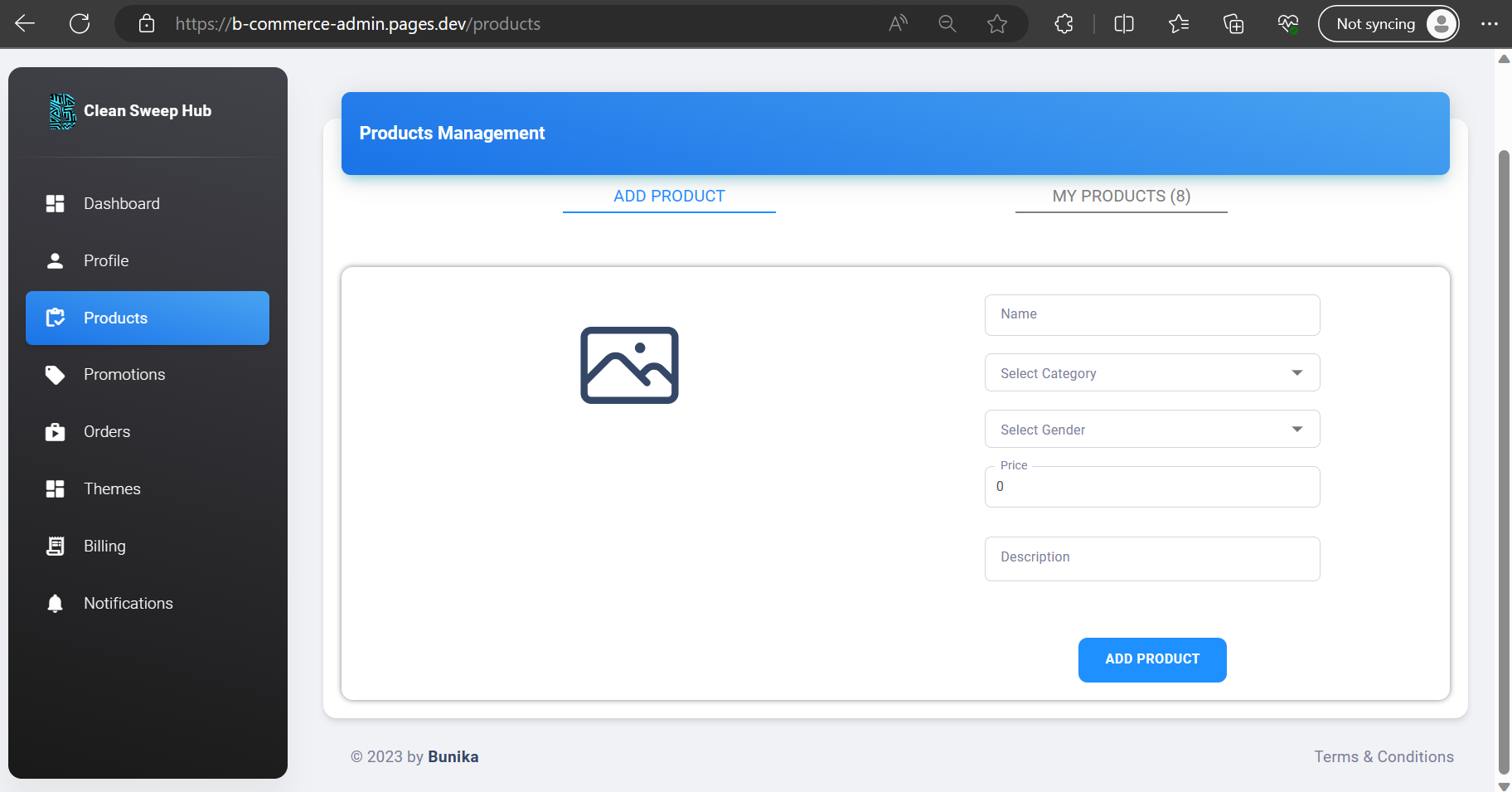
You click on the icon on the left to select an image from your device. You can then provide the required information about your product and click on add product.
Managing Added Products
When you click on the ‘My Products’ tab under product management, you will be directed to the following screen
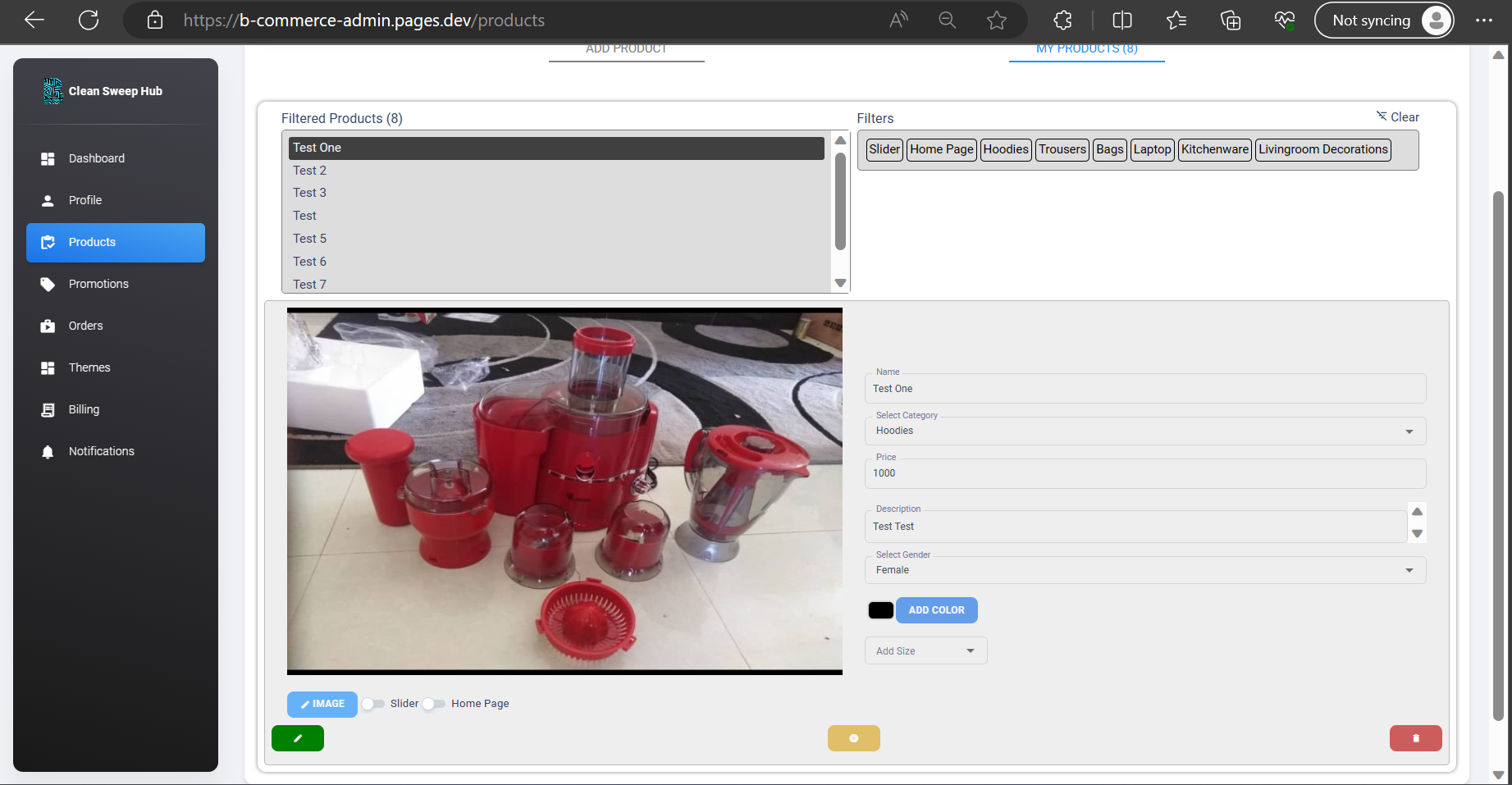
The above screen has three components.
Filtered Products
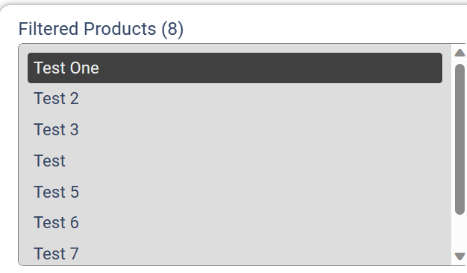
The filtered products panel will show you a list of all products you have that match the selected criteria according to the filters.
You can select a product to view by clicking on it
Filters
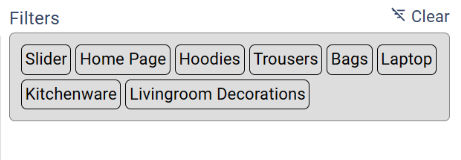
The filters panel allows you to filter through products to find the one you are looking for. You can filter by category (Hoodies, Trousers, Bags, etc.) and features (Slider, Home Page, etc.).
The ‘Slider’ and ‘Home Page’ filters are unique.
Slider: This filter allows you to search for products that you have selected to be on the slider part of your website. This can be used to promote certain products since they will be the first ones visible when a client visits your store front. You can set up to a maximum of 12. By default the last 12 products will be used in your slider
Note
This is part of the reason why you need to have at least 8 products for your store to be visible. To ensure your store always looks appealing
Home Page: This filter allows you to see which products will be visible on the home page. Below the slider, the customer will be able to see a sample of the goods from your store before they get into specific categories or search for a particular item. You can set up to 24 home page products
Product Information
Once you select a product from the filters panel, the details of the product will be displayed here.
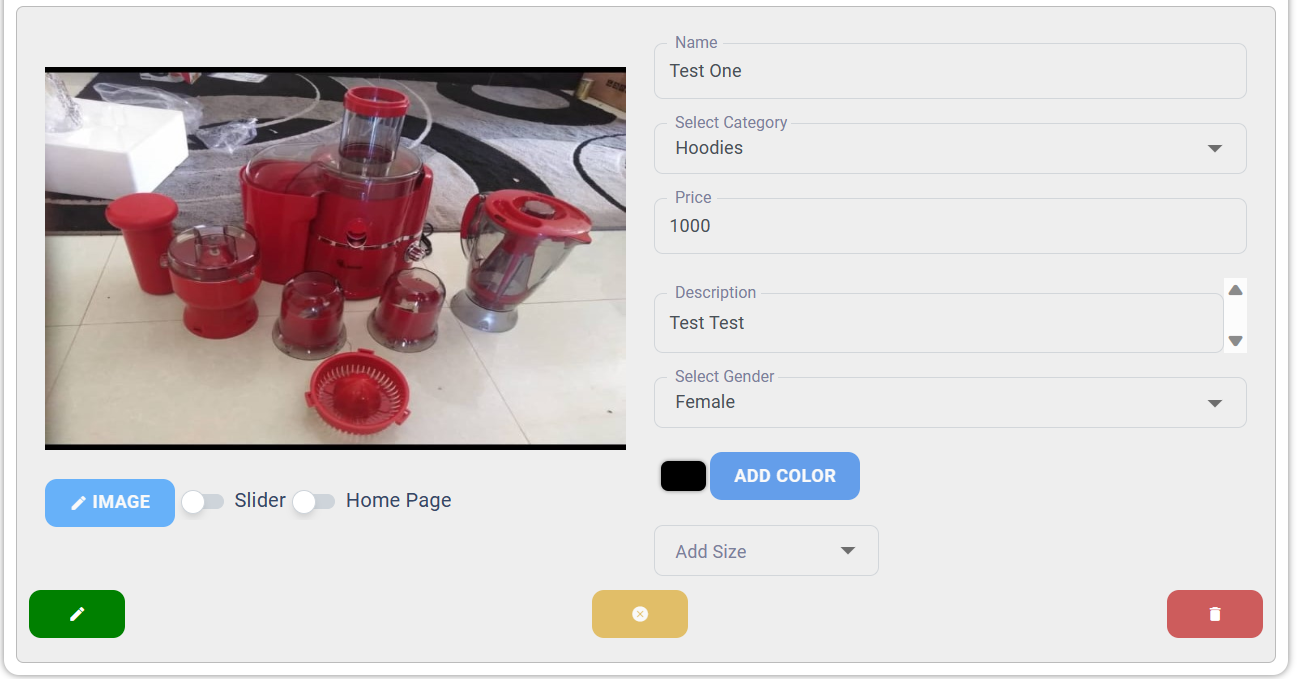
Here you can edit the information by first clicking the green pencil icon and then clicking the green tick icon once done. You can cancel the changes any time by clicking the yellow cancel icon. You can delete the product by clicking the red bin icon.
You can modify any information about the product including the image and whether or not you want it to be a slider or home page item. You can also add up to 6 different colors.
The size and gender options are only available for wearable categories such as clothes, shoes, bags, belts etc.