Appearance
Profile Management
The profile tab has 3 segments
Profile Information
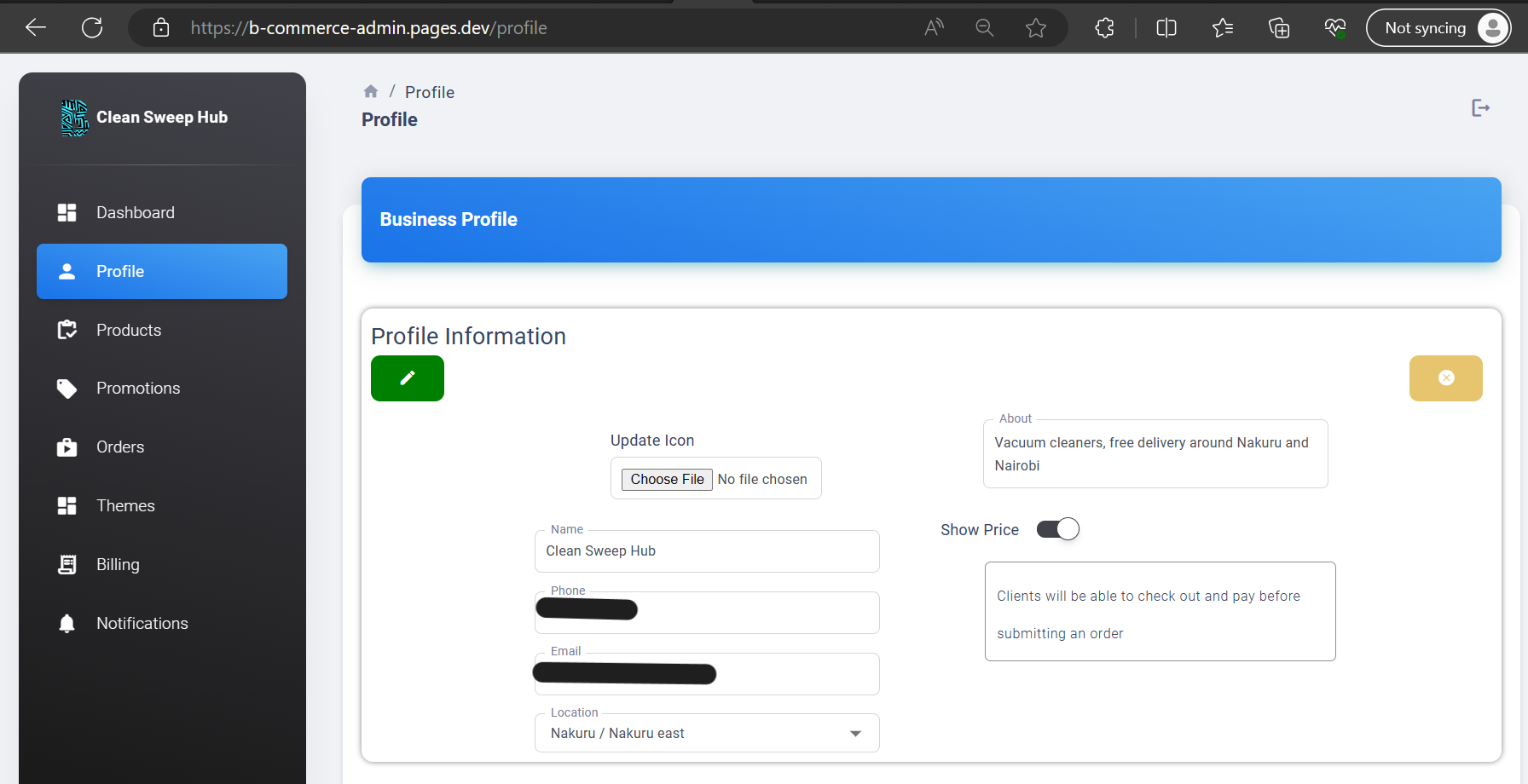
Here you can see the details about your business. These are the details provided during the creation of your account.
By default, there is no account icon and the ‘Show Price’ option is set to on. You can modify any of these, by clicking on the green pencil button on the top left corner of the panel. Once clicked you will be able to make changes to the information there.
While you’re editing, the yellow cancel button will be enabled you to revert to the initial setting.
Once done editing you can click on the green tick button to save your changes.
If you have the show price setting to ‘off’, clients will not be able to make orders online. They will select the items they are interested in and request a quote from you. This can be useful when:
- You want to negotiate with the customer.
- The goods you are selling do not have fixed price
- You don’t want to reveal too much information
Important Tip
The system will still track the progress in the orders system. In order to keep your statistics consistent, it is advisable to provide the price of the product on creation even if you’re going to hide it.
Deliveries
This section contains information about your delivery locations
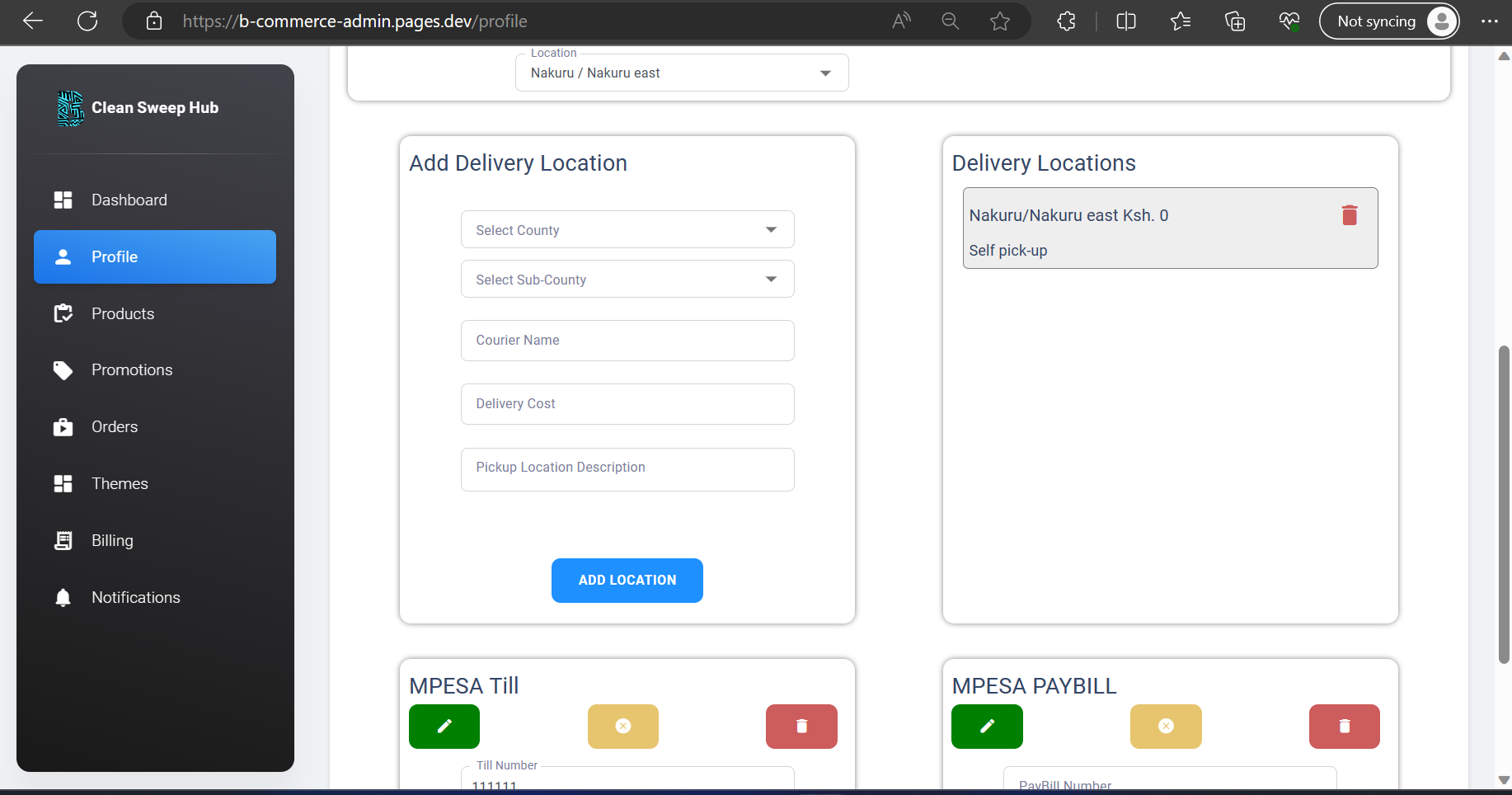
By default, the location of your business is provided as a delivery location. The price is set to 0 since the customer has to come your premises to collect the goods.
You can add multiple delivery locations. You can specify the county, subcounty, courier (G4S, Wells Fargo, PSV/Matatu, or your own delivery mode), cost (depending on the previous factors) and a description of the pick up location.
You can delete outdated delivery locations by clicking the red bin icon on the delivery location.
WARNING
The delivery cost will be added to the total checkout price before the customer places the order
TIP
As per the email instructions you need to have at least one delivery or pick-up location for your website to be visible
Payment Options
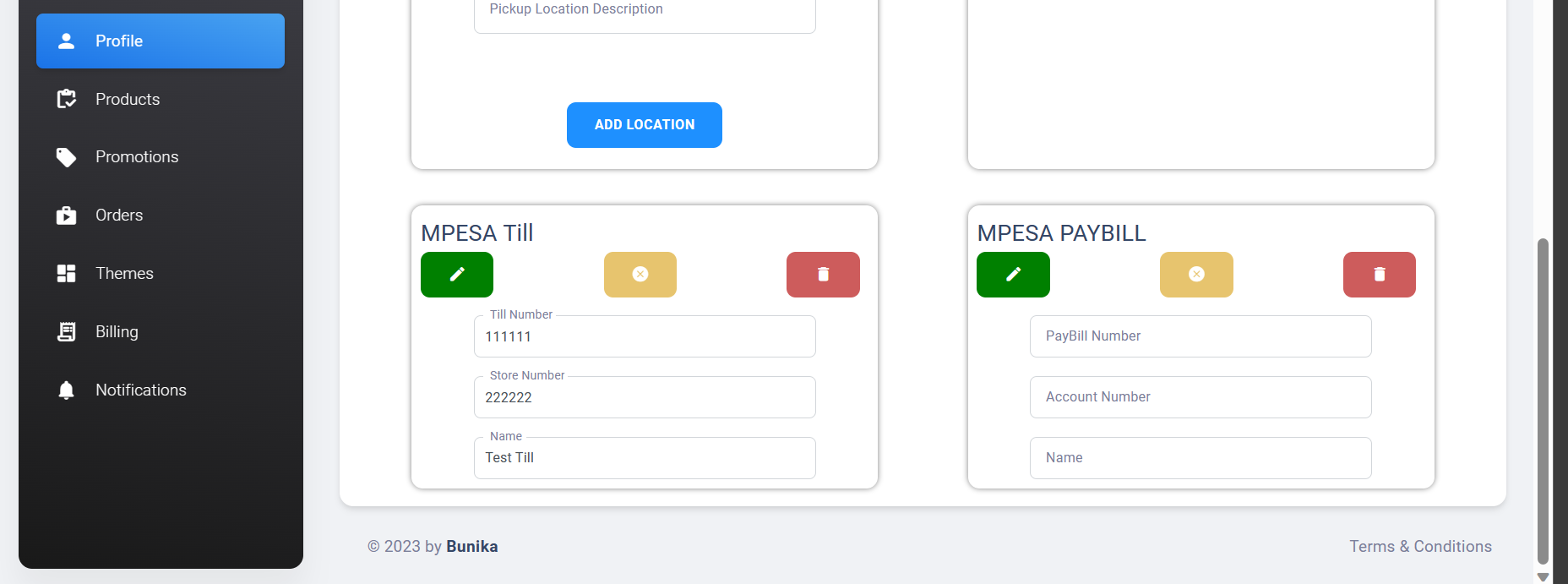
At the time of writing this document, you can use the following payment modes. You can edit the information by clicking the green pencil icon. To cancel your changes you can click the yellow cancel icon during editing. To delete the payment method you can click on the red bin icon.
WARNING
You need to have at least one payment mode active in order for your website to be visible